



Audit log: who did what, and when
19 views · by Kevin J Bruno · updated 16 hours ago
The Audit log is your firm's permanent record of important actions in BIMeta Business: who invited whom, who changed roles, who sent an invoice, who opened someone's personal files, who changed a setting, and much more. Each entry says when it happened, who did it, what they did and to which record. The log is tamper-evident: records are only ever added, each one is chained to the one before, and the page checks the chain every time you open it, so nobody can quietly edit or delete history.
Where to find it
- Sidebar → Admin → Settings, then Audit log in the People and access section. (The Settings page gathers the firm's settings pages in one place; you can also type in its Search settings box.) A ← Settings link at the top of the page takes you back to the Settings page.
- Press Ctrl K and type audit, log, history or activity.
- To export the log for an auditor or another system, IT Staff can use Admin → IT, Audit export tab.
Who can use it
- Business Owner, Admin and IT Staff (the permission Read the audit log).
- Everyone sees the whole firm's log; there's no per-person filtering of who sees what.
- Nobody, including Business Owners, can edit or delete entries.
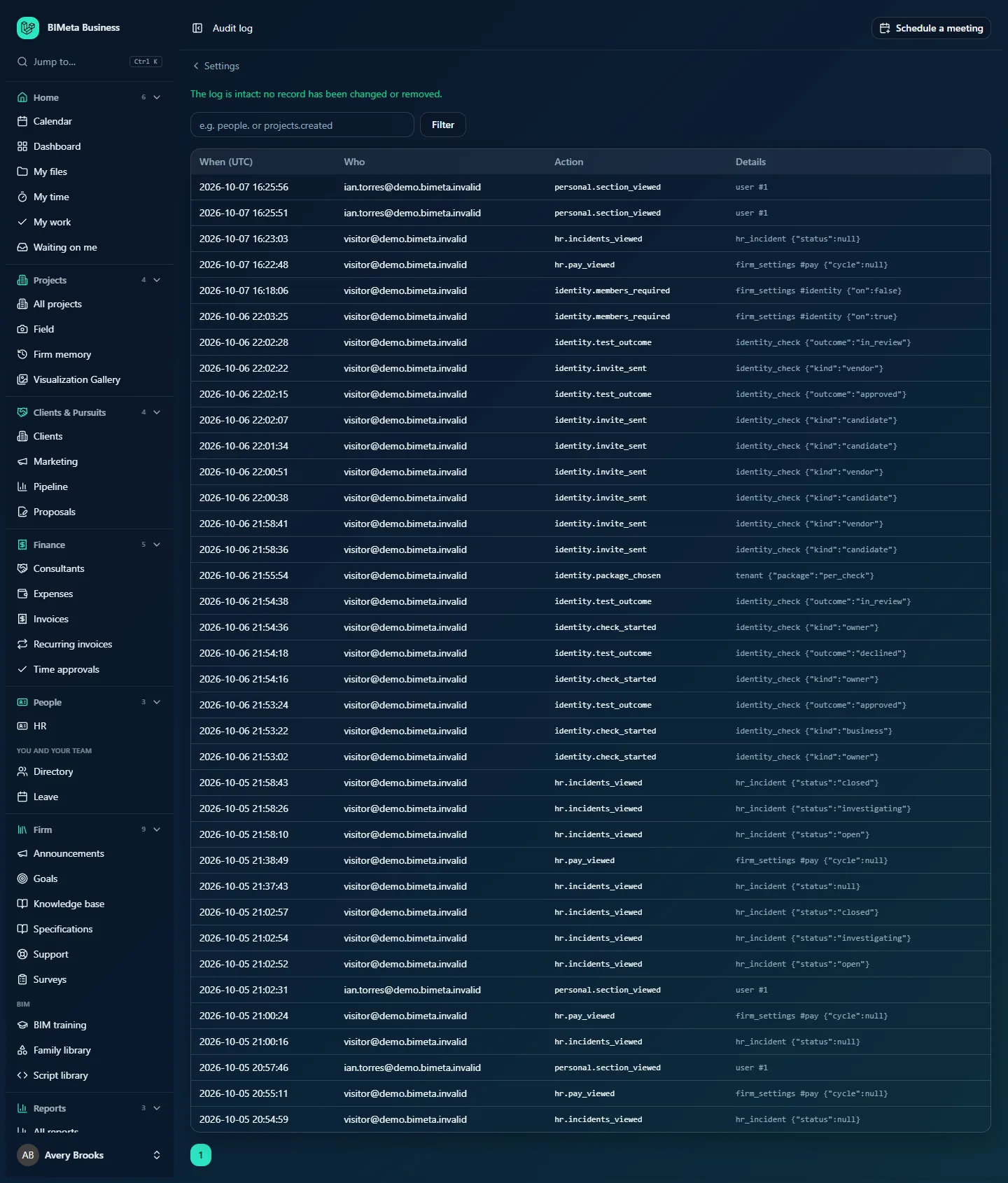
A tour of the page
The integrity check
The first line tells you whether the log is intact:
- In green: The log is intact: no record has been changed or removed.
- In a red box: Record [number] or one before it was changed or removed. Contact BIMeta support. This should never happen; if it does, contact BIMeta support straight away and don't change anything else.
Filter
A box (e.g. people. or projects.created) and a Filter button. Type the beginning of an action name to show only matching entries (see "Reading action names" below). Clear the box and click Filter to see everything again.
The table
Newest first, 50 entries per page.
| Column | What it shows |
|---|---|
| When (UTC) | Date and time in UTC (Coordinated Universal Time), for example 2026-10-05 20:55:11. Convert to your local time: Pacific time is 7 or 8 hours behind UTC, Eastern 4 or 5. |
| Who | The person, shown by their email address. If the action didn't come from the web portal, the channel follows in brackets: (api) for the data API and connected apps, (mcp) for AI assistants connected to the portal, (cli) for automatic system tasks. |
| Action | The action's name, for example hr.pay_viewed or hr.incidents_viewed. |
| Details | The kind of record and its number (for example hr_incident or firm_settings #pay), followed by extra details where useful, such as the roles before and after a change. |
Page buttons under the table move between pages. Nothing recorded yet. appears for a brand-new firm.
Reading action names
Each action is named area.what_happened. Filtering by just the area and a dot (for example people.) shows everything in that area. Useful ones:
| Filter | Shows |
|---|---|
people. | Invitations sent, resent and accepted (people.invited, people.invitation_resent, people.invitation_accepted), role changes (people.roles_changed), deactivation and reactivation, two-factor resets (people.2fa_reset), roles created or edited (people.role_created, people.role_updated), accounts created by single sign-on. |
settings. | Firm settings: setup steps (settings.setup_saved), navigation, web addresses, custom fields, emails and delivery, wording, single sign-on (settings.sso_saved), imports (settings.import.projects and so on). |
personal. | Personal files: uploads and deletes, and Owners or IT opening someone else's files (personal.section_viewed, personal.file_downloaded). |
privacy. | Privacy requests recorded, exported, downloaded, erased or declined. |
servers. | SSH keys added and removed, and IT address changes. |
hr. | HR work, including who viewed pay and incident reports. |
finance. | Invoices drafted, sent and voided, payments recorded, consultant invoices, expenses. |
files. | Project files uploaded, downloaded, deleted and shared, and legal holds. |
billing. | Plan and storage orders, AI credit purchases. |
api. | API keys and webhooks. |
Other areas include projects., clients., ca. (construction admin), field., bids., bim., drive., desktop., gallery. and firm.. You can also filter by a full name, such as people.roles_changed.
How to answer common questions
Who gave this person their role?
- Type
people.roles_changedand click Filter (orpeople.invitedfor the original invitation). - Look for the person's user number in Details (
user #12). The context shows the role numbers from and to.
Has anyone looked at a colleague's personal files?
Filter by personal.section_viewed and personal.file_downloaded.
When was single sign-on changed, and by whom?
Filter by settings.sso.
Tips and good to know
- The log is kept per firm, separately from every other firm.
- Secrets are never written to the log: for example a single sign-on save records only whether the client secret changed.
- Record numbers in Details refer to BIMeta's internal numbers, which you can match with the address of a page (for example
/admin/people/12). - For long-term retention or a security tool, use Admin → IT, Audit export tab (IT Staff).
Troubleshooting
The filter finds nothing.
The filter matches the start of the action name. Type people., not roles.
The times look wrong.
They're in UTC, not your local time zone.
I'm a Project Manager and can't find the Audit log.
Only Business Owners, Admins and IT Staff can read it.
Was this article helpful?
Share