



AI: switch AI features on or off, budgets and credit use
16 views · by Kevin J Bruno · updated 16 hours ago
BIMeta Business has AI helpers in many places: the project assistant, meeting minutes from recordings, scope from an RFP, marketing post drafts, HR job descriptions, BIM model reviews and more. Every AI request uses AI credits. The AI page is where the firm decides whether AI features are used at all, sees how many credits are left, sets optional monthly budgets so no single feature or person can use them all up, and checks what used them.
Where to find it
- Sidebar → Admin → Settings, then AI in the Apps and connections section. You can also type in Search settings at the top of the Settings page. A ‹ Settings link above the page title takes you back.
- Ctrl K and type
ai,artificial intelligence,creditsorclaude. - The AI credits and usage link on Admin → Settings → Project assistant.
Since the menu was shortened, the firm's settings pages are no longer listed one by one in the sidebar: they are gathered on the Settings page under Admin, grouped into sections. Each person sees only the pages they may open there. Jump to… (Ctrl K) still finds every page, and you can pin a page to the top of your sidebar if you use it often.
Who can use it
Business Owners and Admins, who can switch AI features on or off and see AI credit use. IT Staff, BIM Managers and Users can't open it. Buying more credits is done by the Business Owner on Admin → Settings → Billing & storage. Separately, IT Staff can block AI that reads the firm's records under Admin → IT → Security; that block wins over the switch on this page.
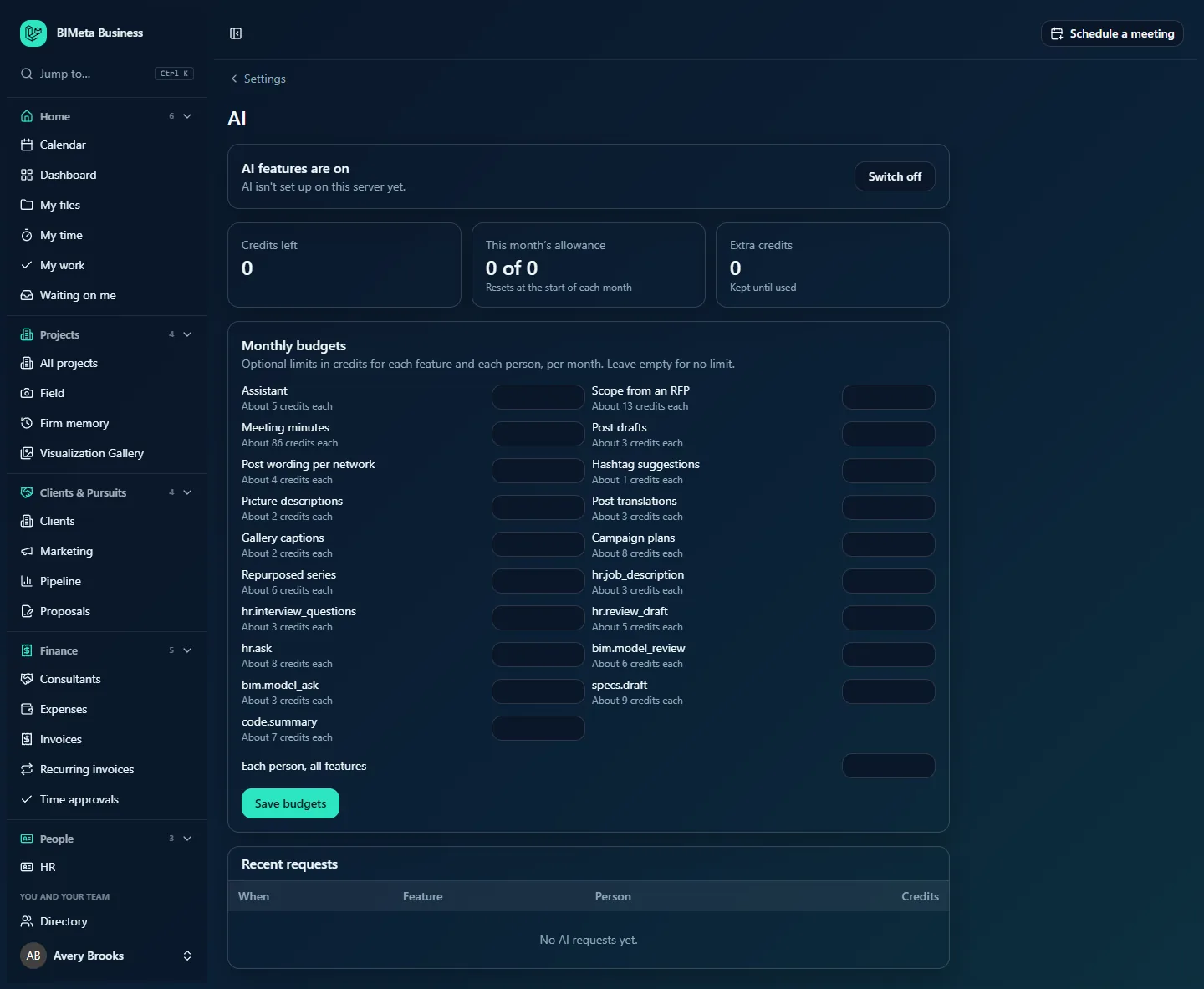
A tour of the page
On/off card
The top card says AI features are on or AI features are off. Under it:
- When AI is set up, Requests go to model name and are charged to your AI credits. BIMeta chooses the AI provider and model; firms don't need their own AI account.
- When it isn't, AI isn't set up on this server yet. (as in the example screenshot). AI buttons around the portal won't work until BIMeta sets it up, whatever the switch says.
The button on the right is Switch off or Switch on.
Credit cards
- Credits left: everything available right now (this month's allowance plus extra credits).
- This month's allowance: what's left of the credits included with your plan this month, for example 3,200 of 10,000. Resets at the start of each month: unused allowance doesn't carry over.
- Extra credits: credits the firm bought on top. Kept until used. They're used only after the month's allowance runs out.
Monthly budgets
Optional limits in credits for each feature and each person, per month. Leave empty for no limit. There's one box per AI feature, each with a hint of what a typical request costs today, for example Assistant: About 5 credits each or Meeting minutes: About 86 credits each. The features are:
| Shown as | Used for |
|---|---|
| Assistant | Questions on a project's Assistant tab |
| Scope from an RFP | Drafting a proposal's scope from an uploaded RFP |
| Meeting minutes | Turning a meeting recording into minutes (includes transcription, so it costs the most) |
| Post drafts, Post wording per network, Hashtag suggestions, Picture descriptions, Post translations, Campaign plans, Repurposed series | Marketing Studio helpers |
| Gallery captions | Describing renderings in the Visualization Gallery |
| hr.job_description, hr.interview_questions, hr.review_draft, hr.ask | HR helpers: job descriptions, interview questions, review drafts and answering handbook questions |
| bim.model_review, bim.model_ask | BIM Manager model reviews and questions about a model |
| specs.draft | Drafting specification sections |
| code.summary | Summarizing a permit code check |
The last few currently show their internal names rather than friendly labels; they work the same way. At the bottom, Each person, all features caps how many credits any one person can use in a month across all features. Save budgets saves the lot.
This month by feature
Appears once AI has been used this month: one line per feature with X requests · Y credits, biggest user first. Only successful requests count.
Recent requests
The last 50 AI requests: When, Feature (with a Failed badge if it didn't succeed), Person and Credits. With none yet, it says No AI requests yet.
How to switch AI features off or on
- Click Switch off (or Switch on) in the top card.
- You'll see AI features are off (or on). The change is recorded in the Audit log.
While AI is off, every AI button in the portal tells people AI features are switched off for your firm. An Admin can switch them on in Admin, AI. (The AI page is now under Admin → Settings.) Nothing else changes: records AI created earlier stay as they are.
How to set monthly budgets
- In Monthly budgets, type a number of credits in the box of each feature you want to limit, for example
500for Meeting minutes. Leave a box empty (or 0) for no limit. - Optionally set Each person, all features, for example
200. - Click Save budgets. You'll see AI budgets saved; the change is recorded in the Audit log.
Budgets count credits used since the first of the calendar month. When a feature's budget is used up, people get This month's AI budget for this feature is used up. An Admin can raise it in Admin, AI. When a person reaches their own limit, they get You've used your AI budget for this month. Budgets reset automatically at the start of the month. The highest value you can enter is 10,000,000.
Tips and good to know
- The "About N credits each" hints are estimates from a typical request at today's prices. Long recordings or big RFPs cost more; short questions cost less. The same estimate appears on AI buttons before they run.
- When all credits are used, people see Your firm has used all of its AI credits. An Owner can add more in Admin, Billing & storage. Buy credit packs there; bought credits never expire.
- Your plan's monthly allowance is set by your plan (see Billing & storage).
- Settings for the project assistant (which records it may read, how many it sends per question) are on Admin → Settings → Project assistant. HR's AI options are on People → HR → Compliance.
- IT Staff can block AI that reads the firm's records, or all AI, under Admin → IT → Security. People then see Your firm's IT team has blocked AI for this.
Troubleshooting / FAQ
The page says "AI isn't set up on this server yet."
BIMeta hasn't connected an AI provider for your portal's server. Contact BIMeta support; there's nothing to configure on your side.
AI is switched on here, but people are still refused.
Check, in order: credits left (top cards), the feature's and person's monthly budget, and whether IT blocked AI under Admin → IT → Security.
Why does Meeting minutes cost so much more?
It includes turning the recording into text before writing the minutes. The estimate assumes a typical one-hour meeting; shorter recordings cost less.
Was this article helpful?
Share